


Your Facebook account popularity is
totally depended upon the friends with whom you'd like to share anything
and get updates with friend's status, but it hurts, when some of your
friends unfriend you and Facebook do not allow you to show which friends have removed you from their friend list. You can not track which friends have removed you, which friends have deactivated their Facebook profile,
who has declined your friend request and how much have you pending
friend requests. Unfriend finder, a user-script which runs via
Greasemonkey for Mozilla Firefox. Unfriend finder allows you to track
back door activity of your friends such as who has removed you from
their friend list, deactivated their profiles, decline your friend
request, awaiting your friend request. So, you can track and take an
action in the real time. Unfriend finder uses the Facebook notifications
to alert you on these events, or you can see it directly by going to
your left sidebar in Facebook's wall and look under the FAVORITES list,
after click on Unfriends, you can check all notifications.
IF THIS TRICK IS HELPFUL FOR YOU THAN
PLEASE DON'T FORGET TO CLICK ON SUBSCRIBE BUTTON...!
How To Check Which Friends Have Removed You in Facebook-Mozilla Firfox
- Make sure you are using Mozilla Firefox browser. If not you should install Firefox.
- If you have installed Greasmonkey on your Firefox, then skip this step otherwise, Install Greasemonkey, after click on Greasemonkey you have to click on +Add to Firefox
then you will see a pop up installation add on windows in which you
have to click on Install Now button. Make sure to restart your browser
otherwise the below step will not work. You can bookmarked this page.
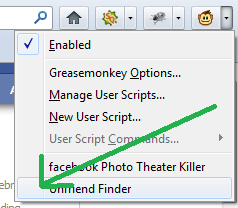
After installation of Greasemonkey, you will see an icon
 of Greasemonkey onto your browser near URL bar.
 - Now install userscript for Unfriends Finder. After clicked, you will see a pop up window like the below preview,
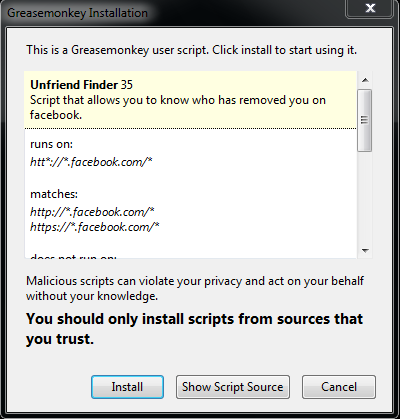
now finally click on Install. - Restart your browser, and log into your Facebook account, you will see an additional tab Unfriends onto the top navigation bar near Account, like the below preview,
clicking on Unfriends, you will see pending requests, and if you wish to cancel all friends request, then you can do it here. You have an option to choose, what do you want to get notified by Unfriend finder, to select various options by clicking on Preferences under Settings under Unfriends tab in FAVORITES list. Take a preview,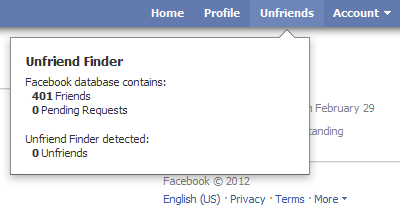

 of Greasemonkey onto your browser near URL bar.

Unfriend/Decline/Unanswered You in Facebook - Google Chrome
- Make sure you are using the latest version of Google chrome, If not, you should install Google Chrome.
- Now install the userscript for Unfriend Finder for Chrome. After clicked, you will see a pop up window like the below preview,
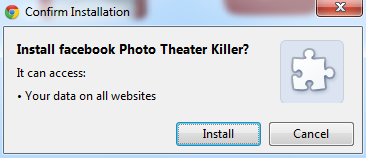
now finally click on Install. - Log into your Facebook account and go back to the 4th step above and read for more information.
when you don't want to show your photo in the old way on Facebook then simply look at the browser toolbar and go to Settings -->Tools -->Extensions and unchecked Enable under Unfriend Finder.
IF THIS TRICK IS HELPFUL FOR YOU THAN
PLEASE DON'T FORGET TO CLICK ON SUBSCRIBE BUTTON...!


